Login & Navigation
Logging In
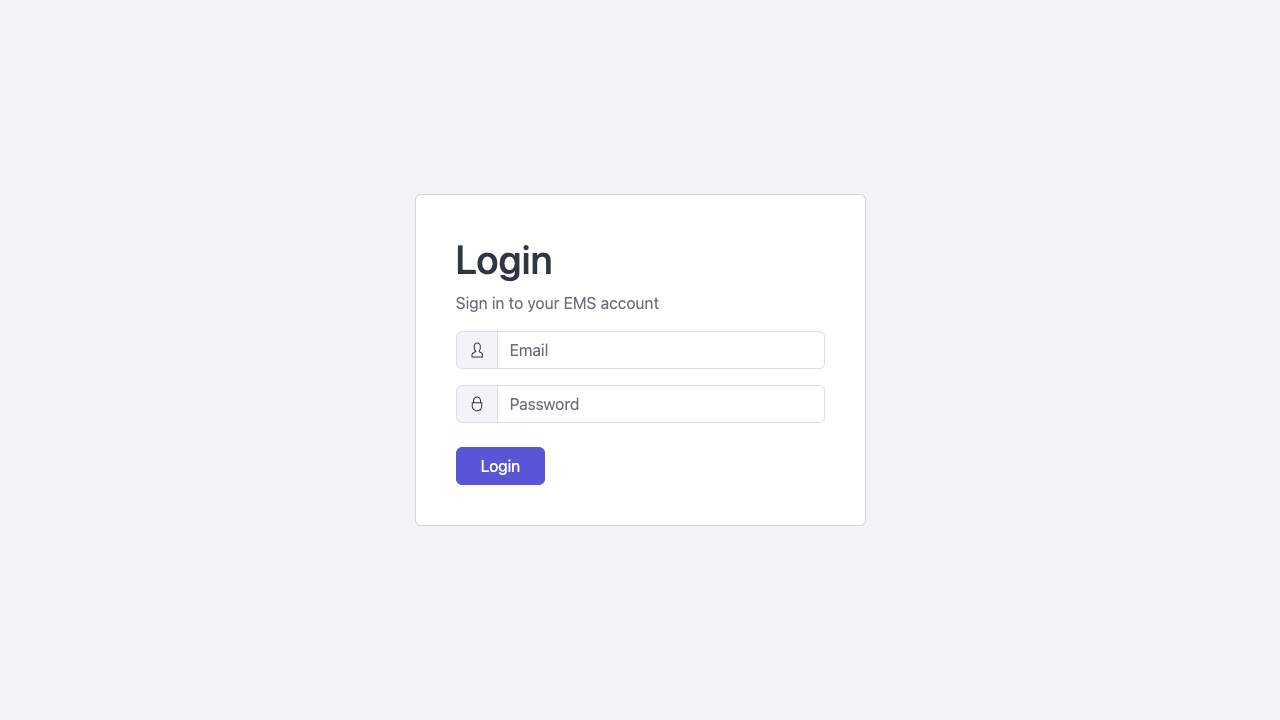
- Open your web browser and go to the EMS URL provided by your administrator (e.g.
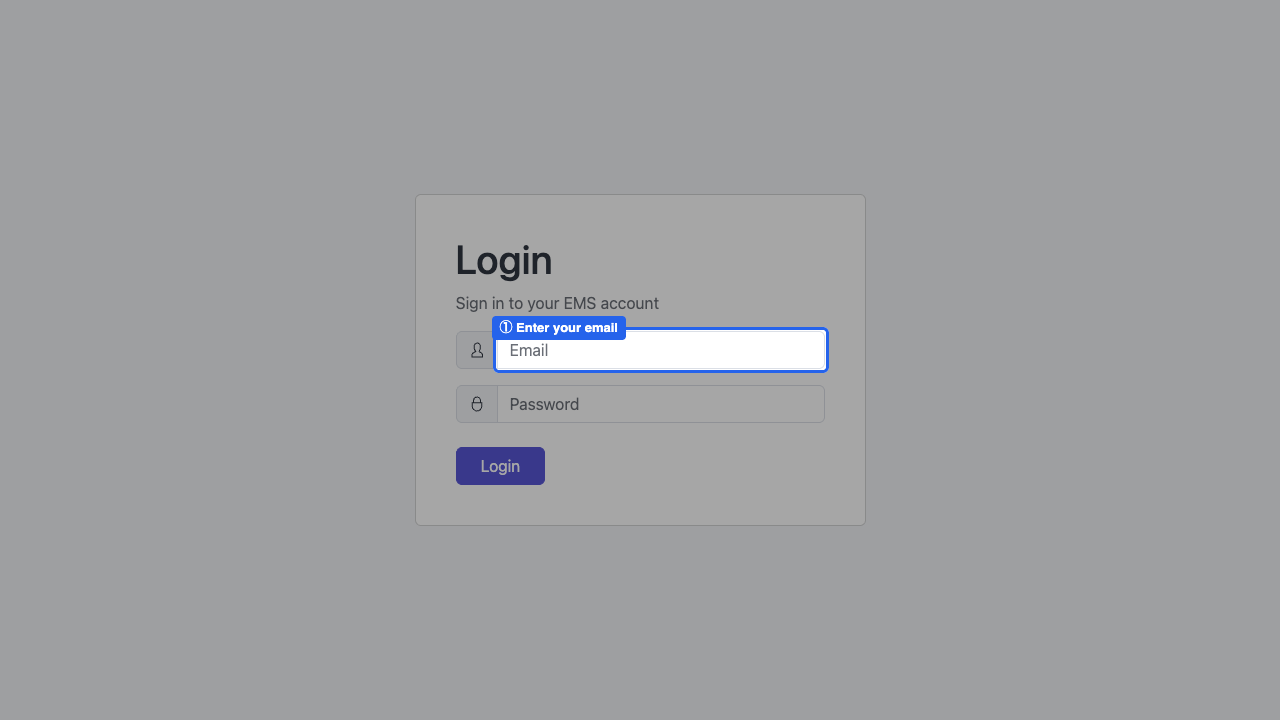
https://app.ems.school). - Enter your Email Address and Password.
- Click Sign In.
Click Forgot Password on the login page. A reset link will be sent to your registered email address. If you do not receive the email within 5 minutes, check your spam folder or contact your school administrator.
If this is your first time logging in, use the temporary password sent to your email and you will be prompted to set a new password immediately.
The Dashboard
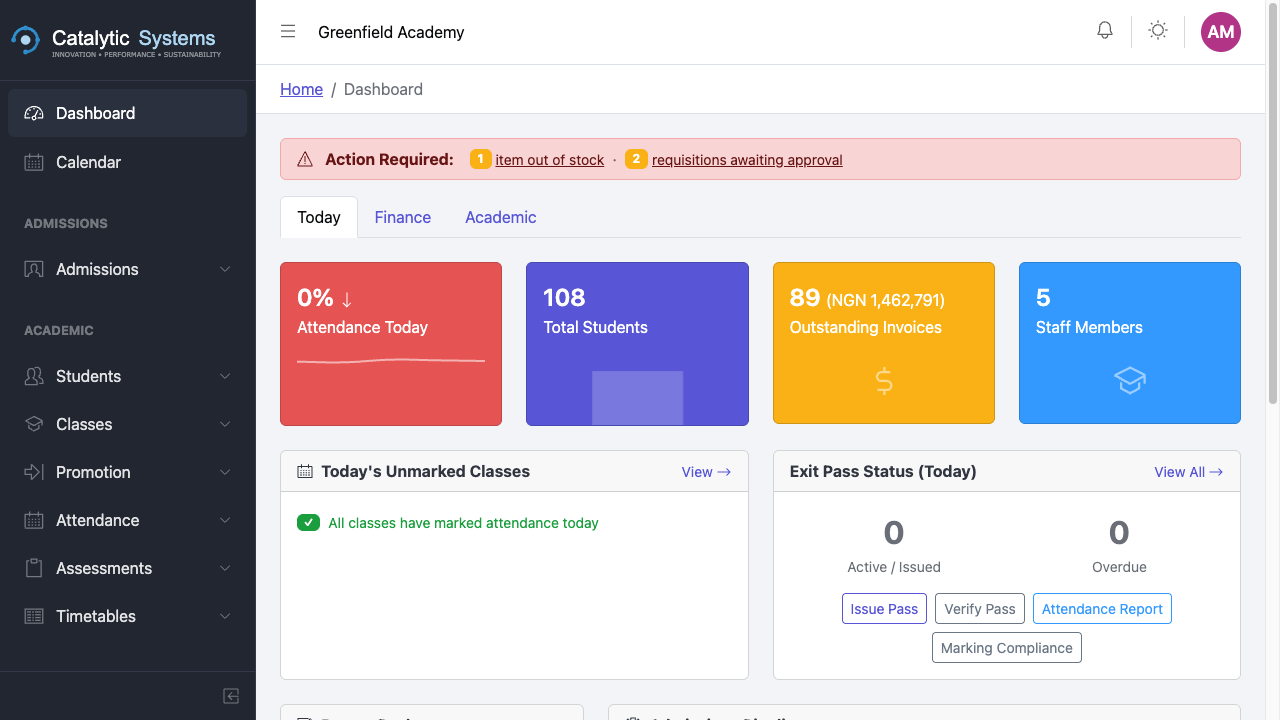
After logging in you are taken to your Dashboard. The dashboard content varies by role:
- School Admin — school-wide stats, recent activity, pending tasks
- Bursar — financial summary, outstanding payments, recent transactions
- Teacher — today's classes, attendance due, pending assessments
Navigating the Sidebar
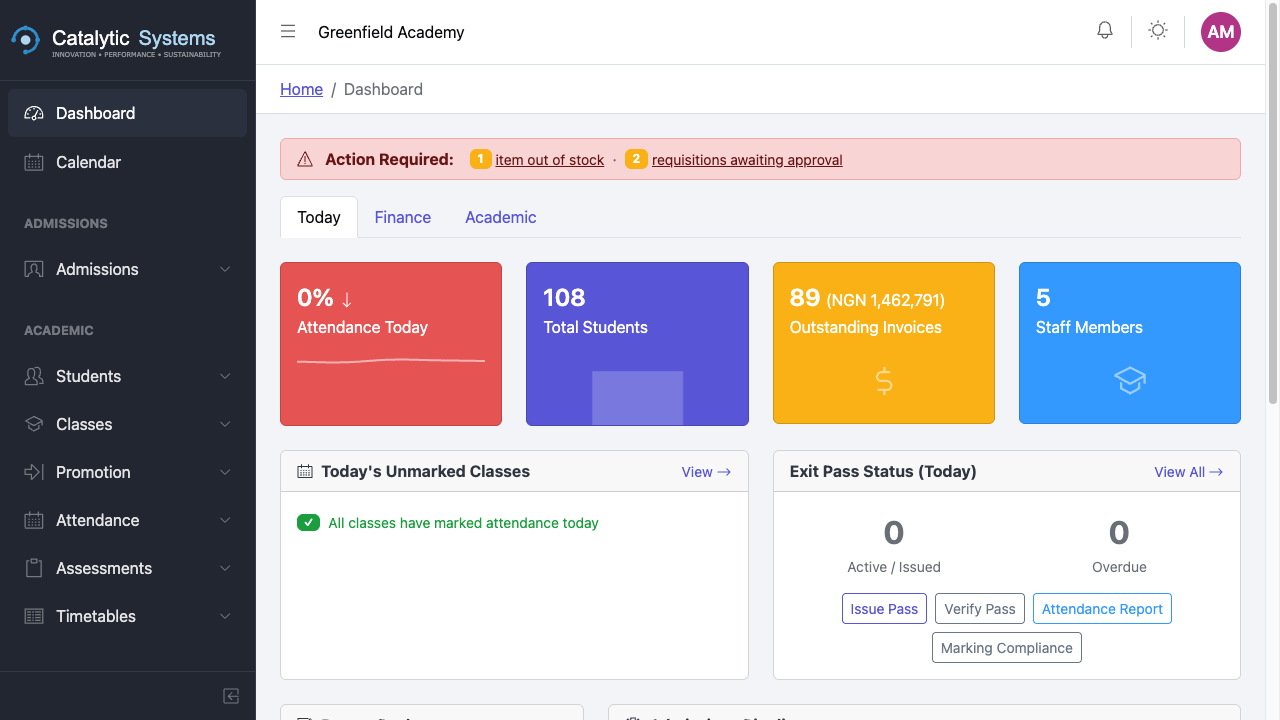
The left sidebar is the primary navigation for the system. It is organised into sections that match your role's access.
| Sidebar Section | Contents |
|---|---|
| Dashboard | Home / overview |
| Admissions | Pipeline, cycles, portal |
| Academic | Students, classes, attendance, timetables, etc. |
| Finance | Fees, invoices, payments, budgets, etc. |
| Administration | Staff, parents, inventory |
| Communication | Inbox, documents |
| Analytics | Reports, report packs |
| Configuration | Settings, load data |
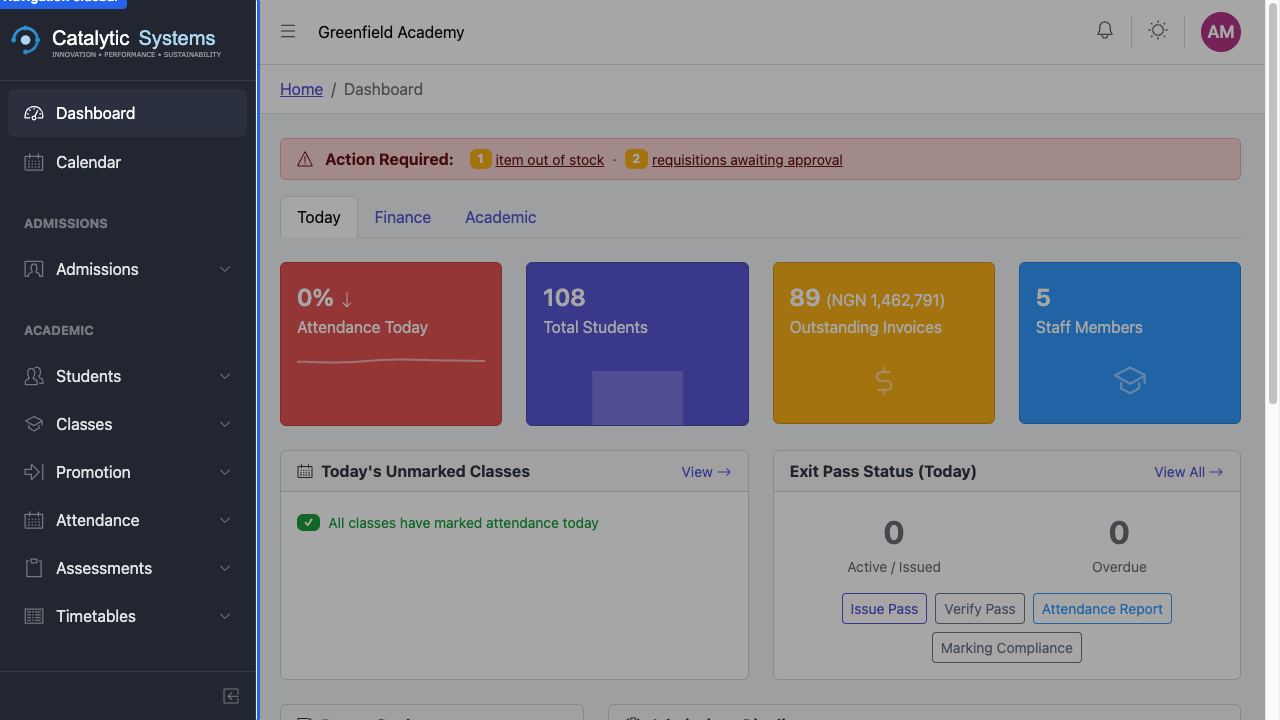
Click any menu item to navigate to that module. Items with a chevron (›) have sub-pages — click to expand the section.
Collapsing the Sidebar
Click the hamburger icon (☰) at the top of the sidebar to collapse it to icons only. This gives you more screen space on smaller monitors. Click it again to expand.
Switching Between Schools (Super Admin Only)
If you are a Super Admin, you can switch into a school's tenant context using the school switcher at the top of the platform panel. Select a school from the dropdown to view it as a school-level admin.
Logging Out
Click your profile avatar in the top-right corner, then click Logout. Your session ends immediately and you are returned to the login page.
EMS sessions expire after 60 minutes of inactivity for security. Save your work before stepping away.