Payments & Receipts
The Payments module records all fee payments received from guardians and applies them to outstanding invoices.
Recording a Payment
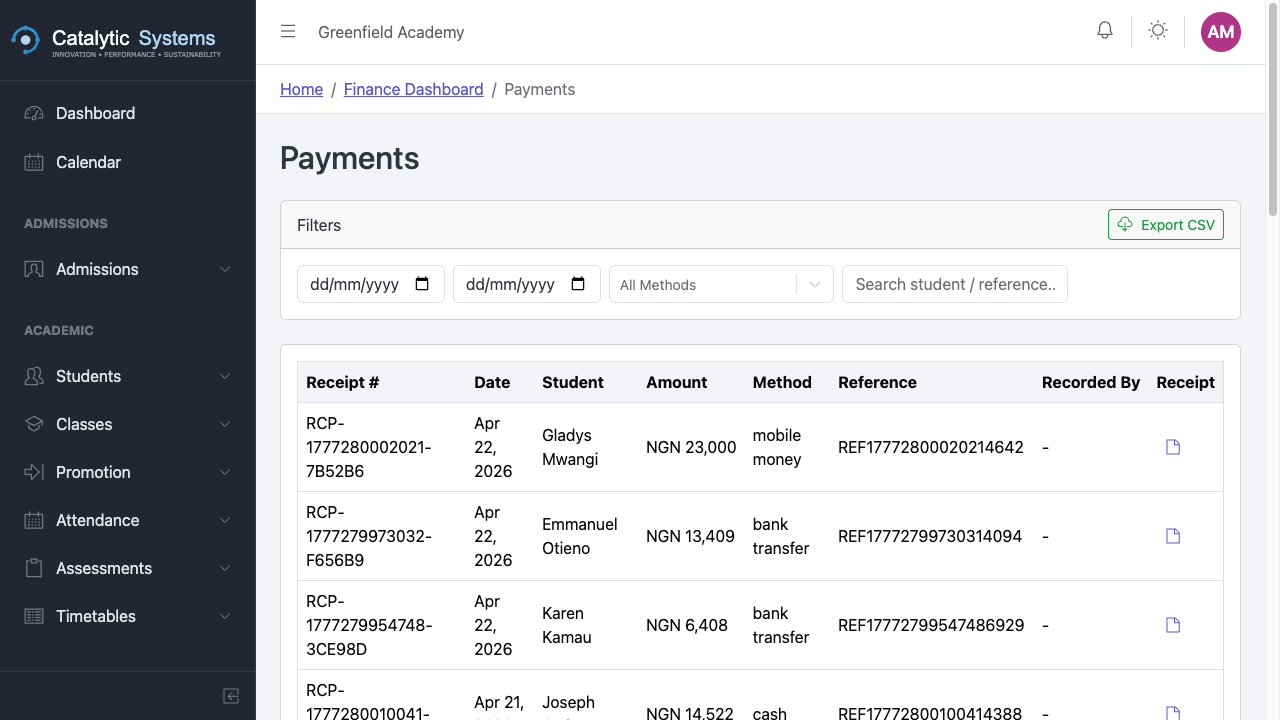
- Go to Finance → Payments.
- Click New Payment.
- Search for the student by name or admission number.
- The student's outstanding invoices load automatically.

- Enter the payment details:
| Field | Description |
|---|---|
| Amount | Amount received |
| Payment Method | Cash, Bank Transfer, Mobile Money, SchoolPay, Cheque |
| Reference | Bank reference or receipt number |
| Date | Date of payment |
- The system allocates the payment to the oldest unpaid invoice first (FIFO). You can adjust the allocation manually.
- Click Save — a receipt is generated automatically.
Receipts
Every payment generates a receipt with a unique receipt number. You can:
- View it on screen
- Download as PDF
- Print directly
- Re-send to the guardian via email
SchoolPay Integration
If your school uses SchoolPay (mobile money payments), payments made by guardians via SchoolPay are automatically imported into EMS. No manual entry needed.
Go to Settings → SchoolPay to configure your SchoolPay account linkage.
Payment History
Click a student's invoice to see the full payment history — every payment applied, the date, amount, and method.
Defaulters
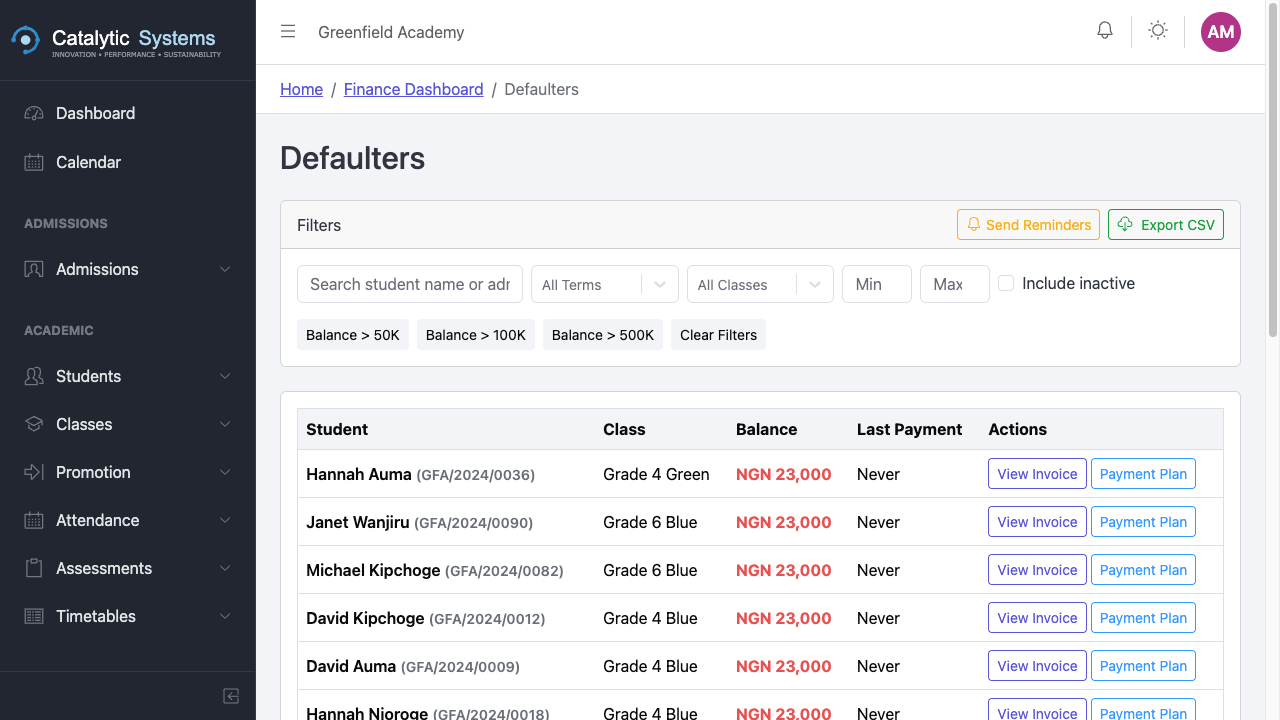
The defaulters report shows students with outstanding balances.
- Go to Finance → Defaulters.
- Filter by term, class, or minimum balance.
- Export the list or send bulk SMS/email reminders.
Cashbook
The cashbook provides a chronological list of all money received, useful for daily reconciliation.
Go to Finance → Cashbook and select the date or date range.