Invoicing
Invoices are the financial records sent to guardians at the start of each term, showing the fees owed for their child.
Prerequisites
Before generating invoices, ensure you have:
- Fee structures configured for the current term
- All students enrolled in their classes
Generating Invoices (Bulk)
The recommended approach is to generate invoices in bulk for the whole school or a class at once.
- Go to Finance → Invoices.
- Click Generate Invoices.
- Select:
- Term — the term to invoice for
- Scope — All classes, or a specific class
- Click Preview to review the invoice summary before committing.

- Review the count and total amount.
- Click Generate to create invoices for all selected students.
note
EMS will not generate duplicate invoices. If a student already has an invoice for the selected term, they are skipped.
Viewing Invoices
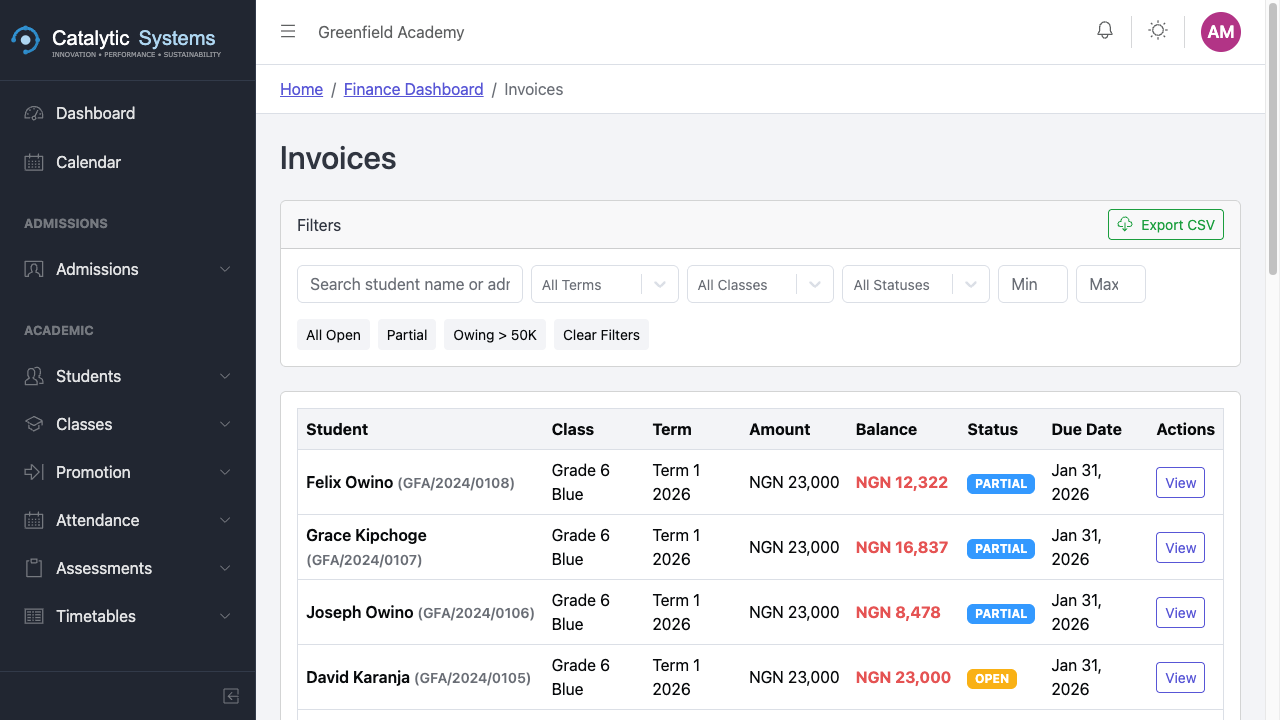
The invoice list shows all invoices with their status:
| Status | Meaning |
|---|---|
| Unpaid | No payment received |
| Partially Paid | Some payment received, balance outstanding |
| Paid | Invoice fully settled |
| Overdue | Past due date with outstanding balance |
Use the filters (term, class, status) to narrow the list.
Individual Invoice
Click an invoice to view its detail:
- Line items and amounts
- Payment history
- Outstanding balance
- Download as PDF
Sending Invoice Notifications
To notify guardians of new invoices:
- From the invoice list, select the invoices to notify.
- Click Send Notification.
- Guardians receive an email/SMS with their invoice details.
Manual Invoice Adjustments
School Admins can add or remove line items on an individual invoice before any payment has been made:
- Open the invoice.
- Click Edit.
- Add, remove, or adjust line items.
- Click Save.