Inbox & Messaging
The Inbox is the unified communication centre for EMS. Use it to send and receive messages between staff members and guardians.
Viewing the Inbox
Go to Communication → Inbox to see all your messages.
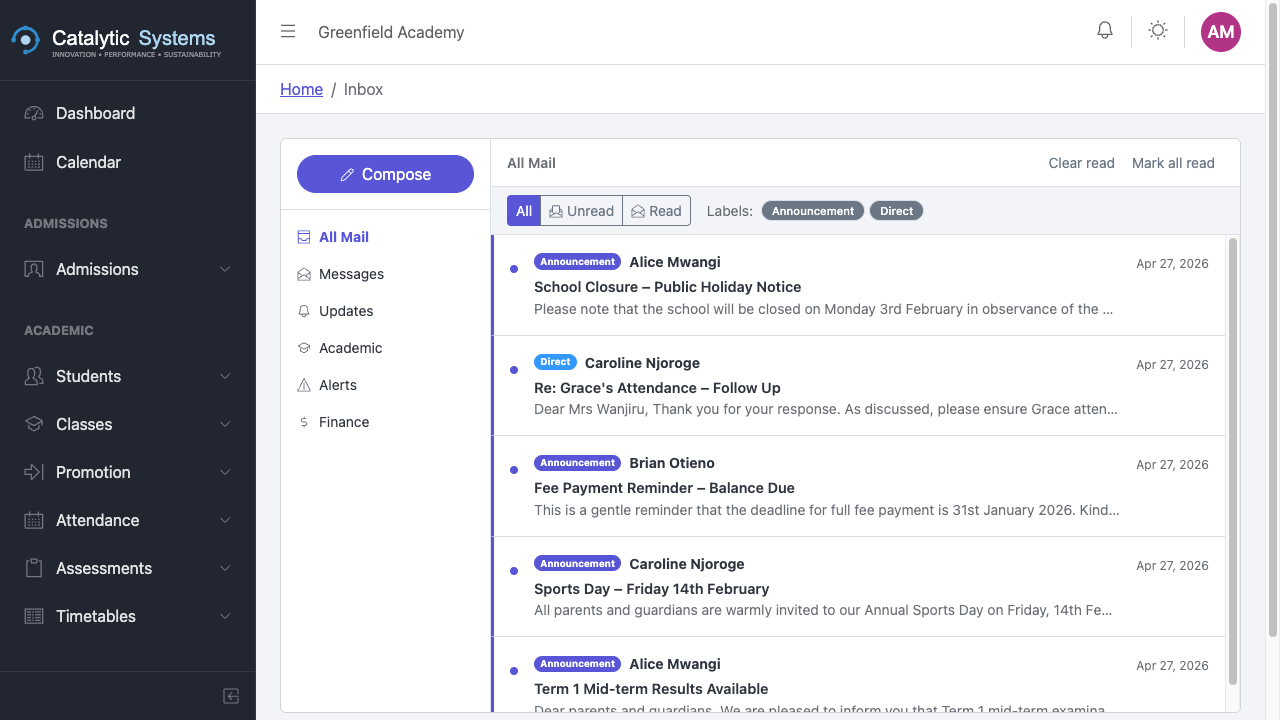
Messages are organised into categories:
- Inbox — messages received
- Sent — messages you have sent
- Drafts — unsent drafts
Reading a Message
Click any message in the list to open and read it. Unread messages are shown in bold.
Composing a Message
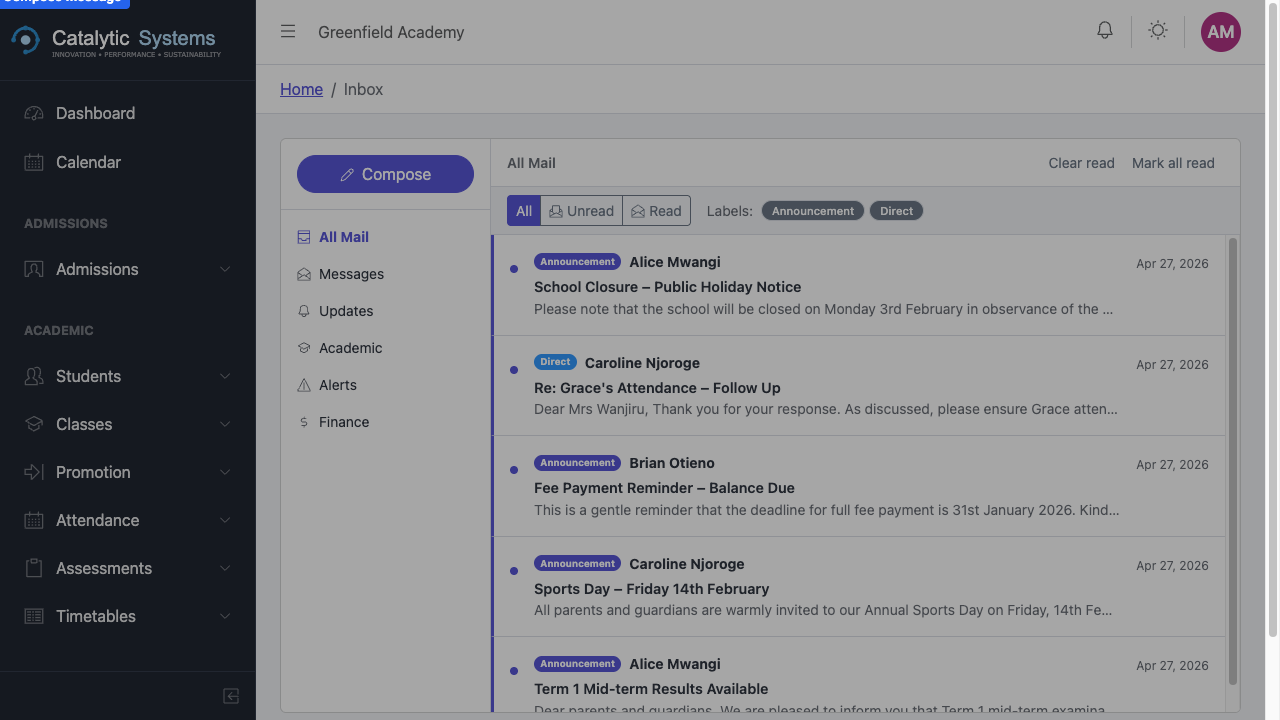
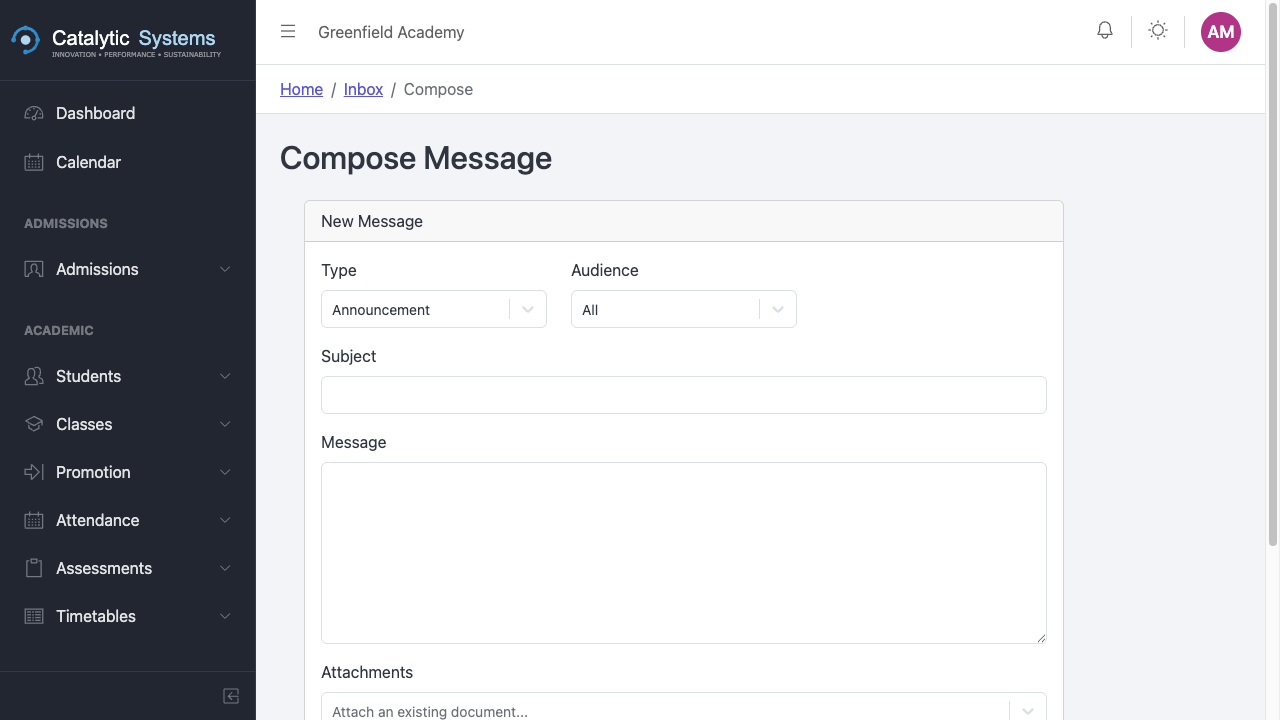
- Click Compose.
- In the To field, search for a recipient — staff member, guardian, or a whole class.
- Enter a Subject.
- Write your message in the body.
- Attach files if needed.
- Click Send.
Sending to a class
You can address a message to an entire class. All guardians with students in that class will receive the message. Useful for class announcements.
Replying to a Message
Open a message and click Reply to respond directly to the sender.
Notifications vs Messages
EMS has two communication channels:
- Messages — longer-form, two-way correspondence (this module)
- Notifications — short system-generated alerts (e.g. payment received, attendance alert)
Go to Communication → Notifications to view system notifications.