Settings & Configuration
The Settings module is where School Admins configure system-wide options that affect all modules. Most settings are configured once and rarely changed.
School Profile
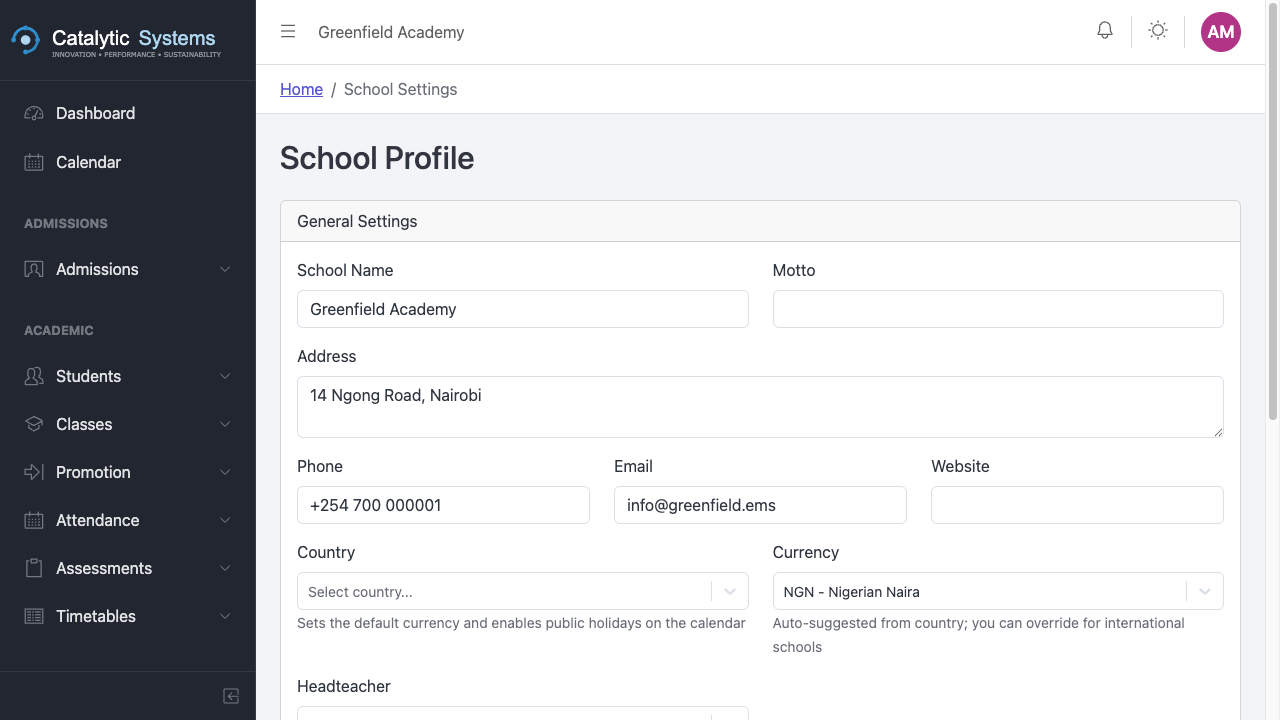
Go to Settings → School Profile to update:
- School name, logo, and motto
- School address and contact details
- School code (used in the admissions portal URL)
- Default currency
Terms
Terms define the academic calendar — each term has a start date, end date, and name.
- Go to Settings → Terms.
- Click New Term.
- Set the name (e.g. "Term 1 2026"), start date, and end date.
- Mark one term as Active — this is the term most modules default to.
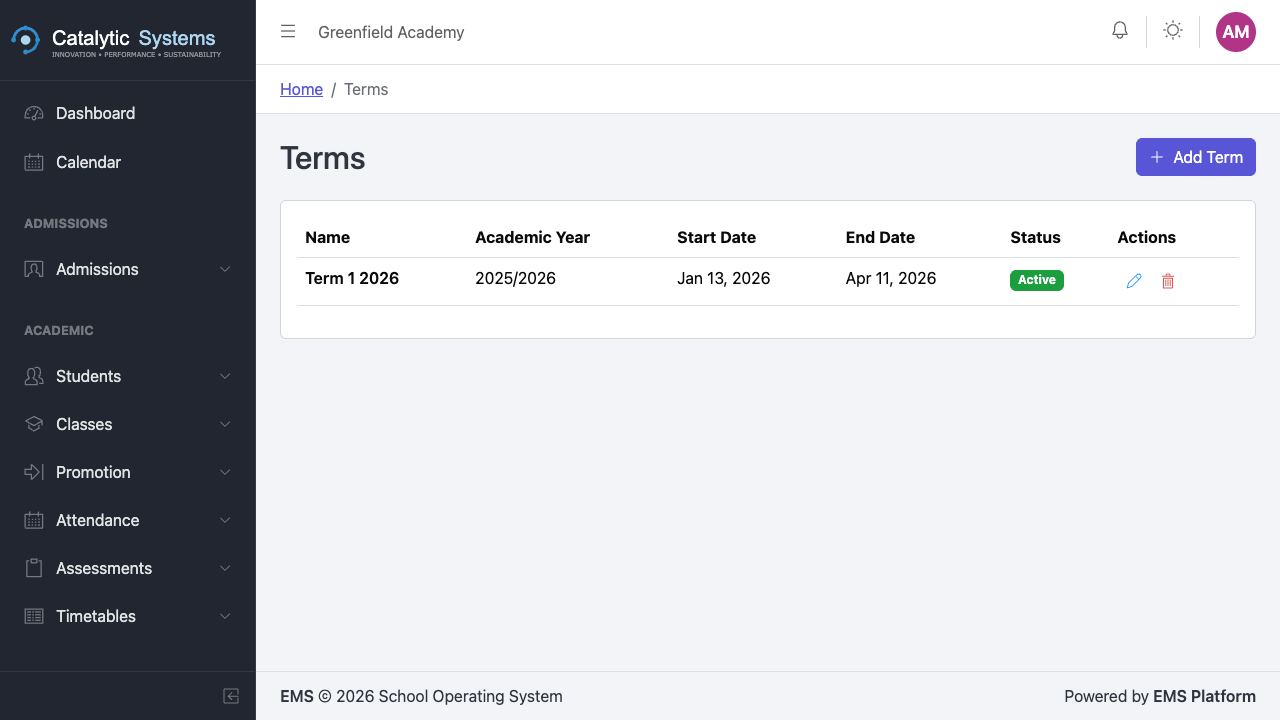
Only one term can be Active at a time. Changing the active term affects the default view across attendance, fees, assessments, and timetables.
Subjects
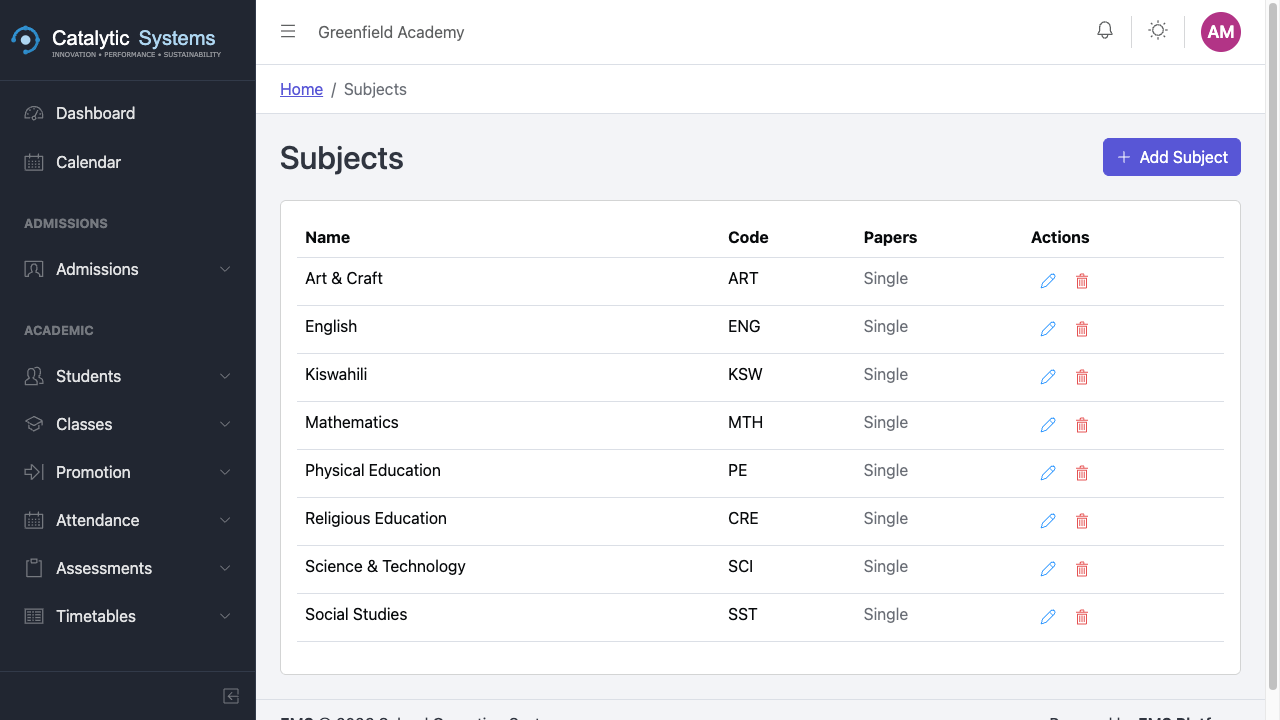
Manage the subjects offered by your school:
- Go to Settings → Subjects.
- Click New Subject and enter the subject name and code.
Subjects are then available for class enrolment, timetabling, and assessments.
Staff & Users
Manage staff accounts and roles under Settings → Staff/Users. You can add new users, assign roles, and deactivate accounts.
Grading
Configure your school's grading scale:
- Go to Settings → Grading.
- Define grade boundaries — e.g. 80–100% = A, 65–79% = B, etc.
- Add comments or descriptors for each grade.
This grading scale is applied automatically in Report Packs.
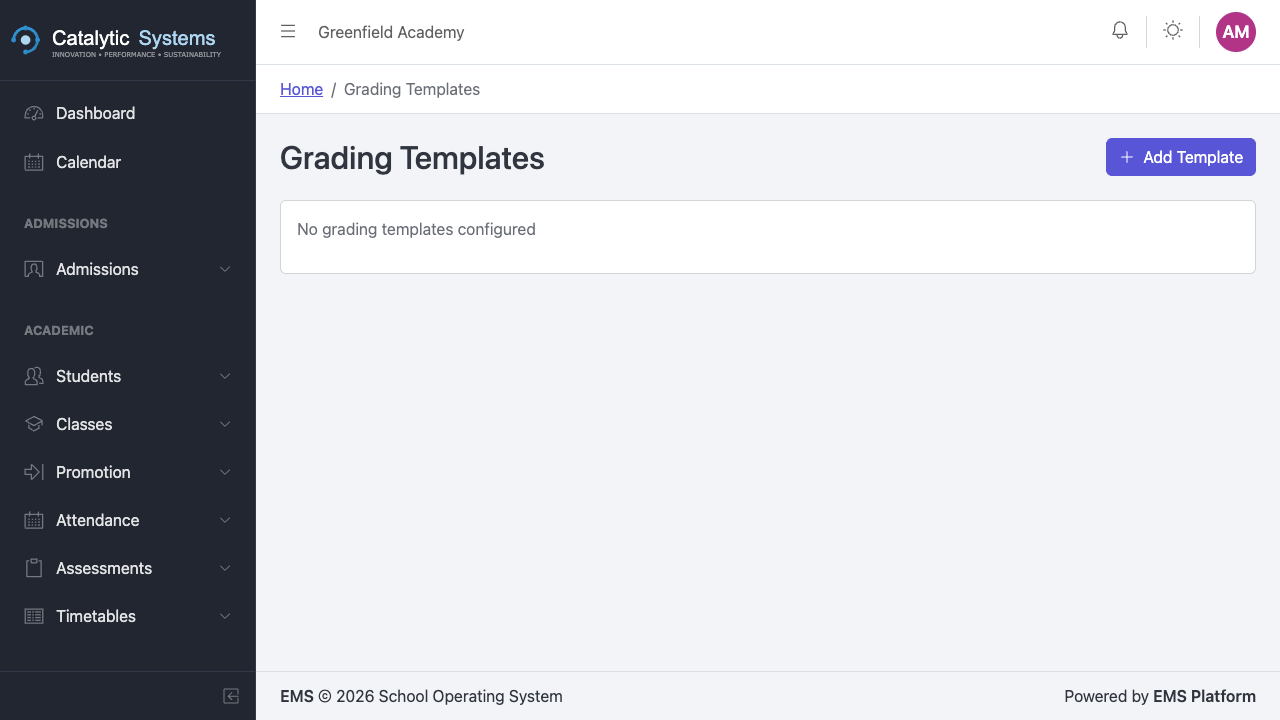
Grading Templates
Configure your grading scale once and it applies consistently across all assessments and report packs.
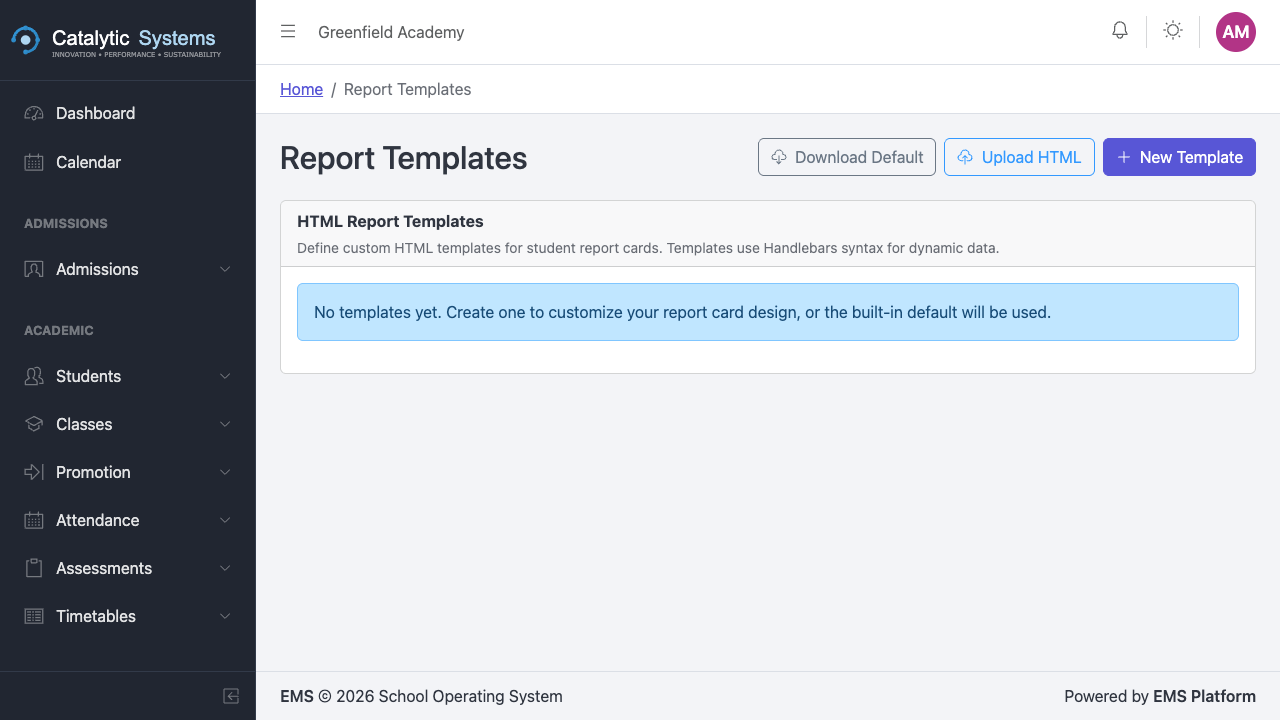
Report Templates
Customise the layout and content of student report cards:
- Go to Settings → Report Templates.
- Use the template editor to add school logo, headers, subject columns, comment fields, and signature blocks.
Attendance Check Types
If your school marks attendance multiple times per day:
- Go to Settings → Attendance Check Types.
- Add check types (e.g. "Morning", "Afternoon").
- Set the expected time for each check.
Timetable Settings
Configure timetable rules and period structures under:
- Settings → Timetable Periods — define the daily period schedule
- Settings → Timetable Rules — set constraints (e.g. max periods per day per teacher)