Inventory
The Inventory module tracks school assets and consumable stock — from textbooks and sports equipment to stationery and cleaning supplies.
Inventory Dashboard
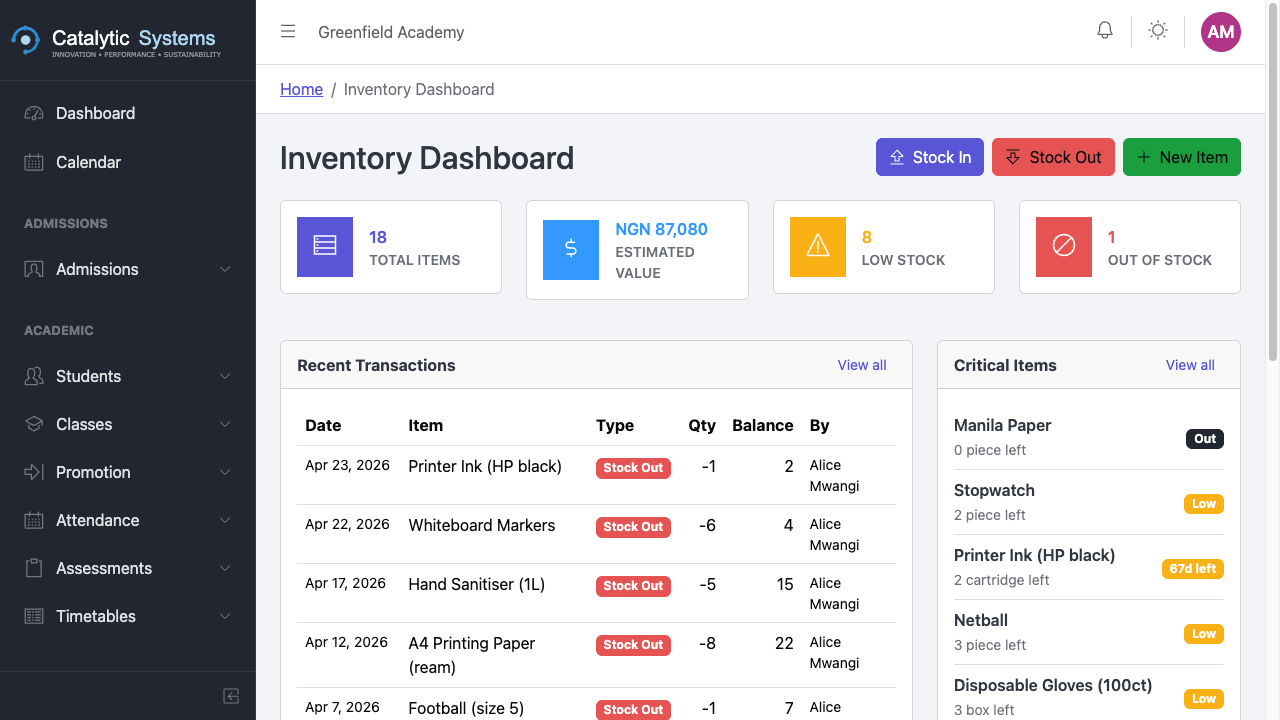
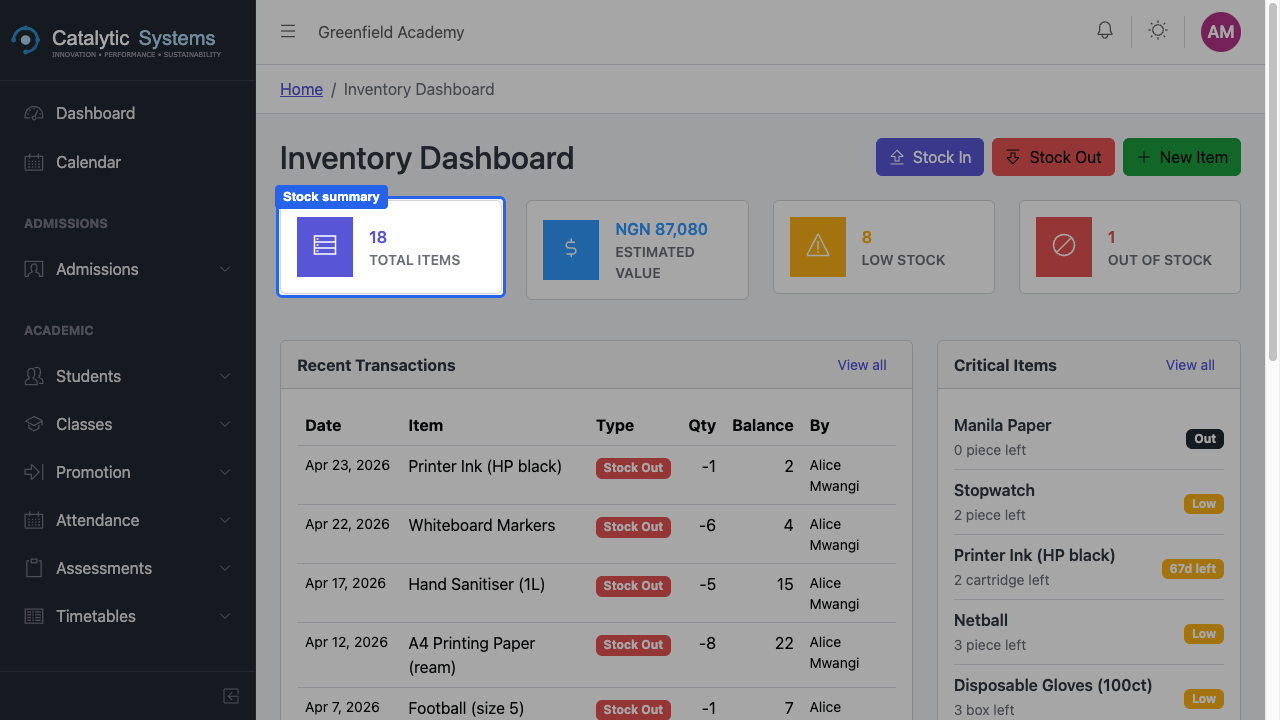
Go to Administration → Inventory to see the inventory dashboard with:
- Total items in stock
- Low stock alerts
- Recent stock movements
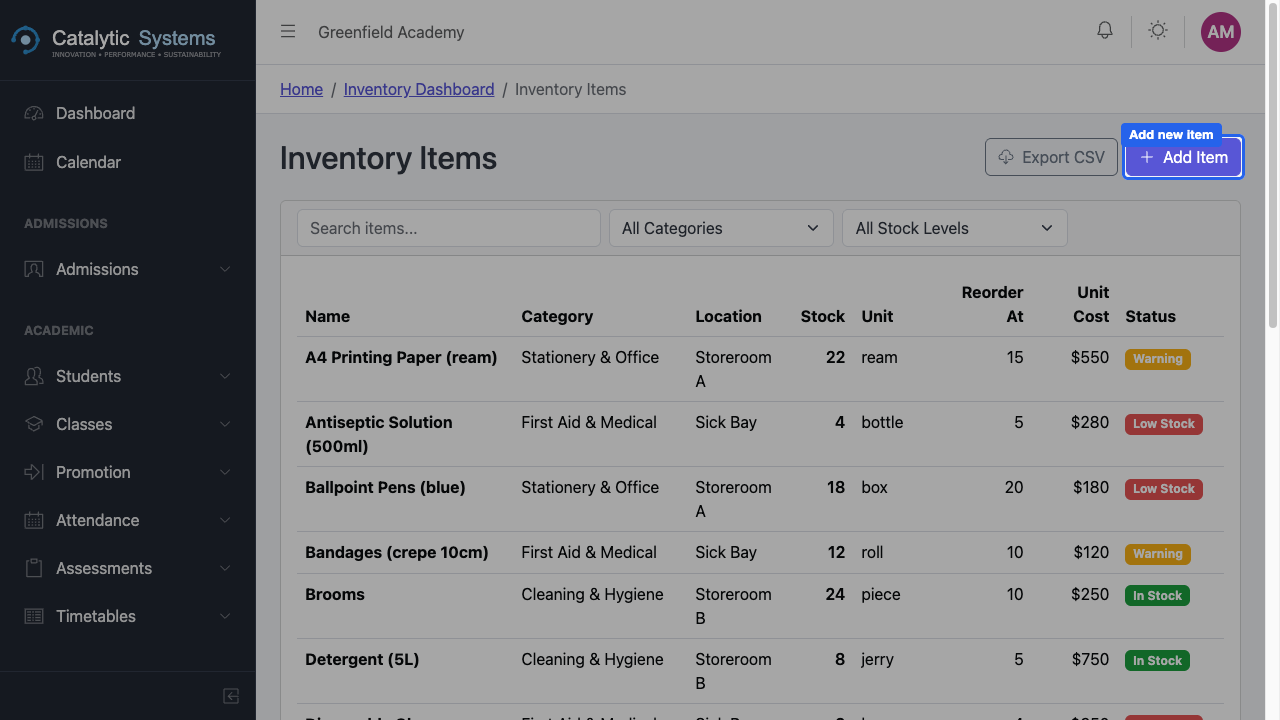
Adding an Item
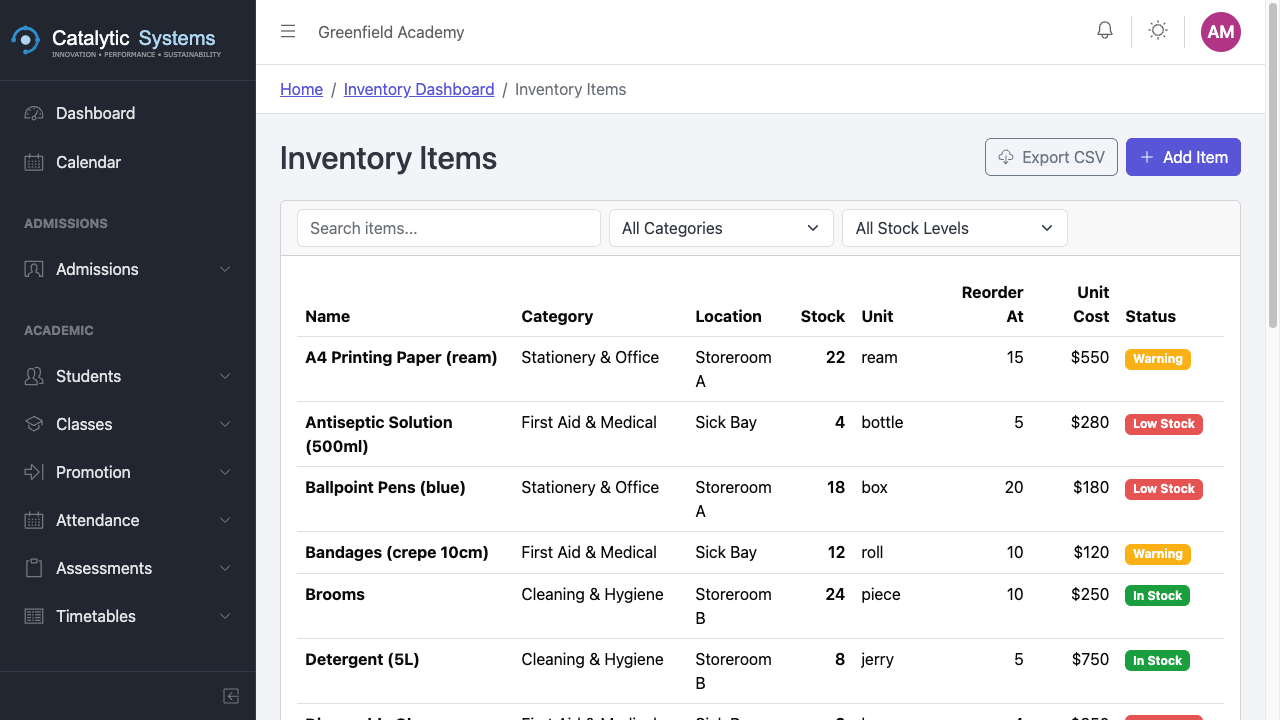
- Click New Item.
- Fill in:
| Field | Description |
|---|---|
| Item Name | e.g. "A4 Printing Paper (Ream)" |
| Category | Stationery / Books / Equipment / Furniture / Other |
| Unit | Ream, piece, box, set, etc. |
| Reorder Level | Quantity at which a low-stock alert is triggered |
| Supplier | Preferred supplier for this item |
- Click Save.
Recording Stock In
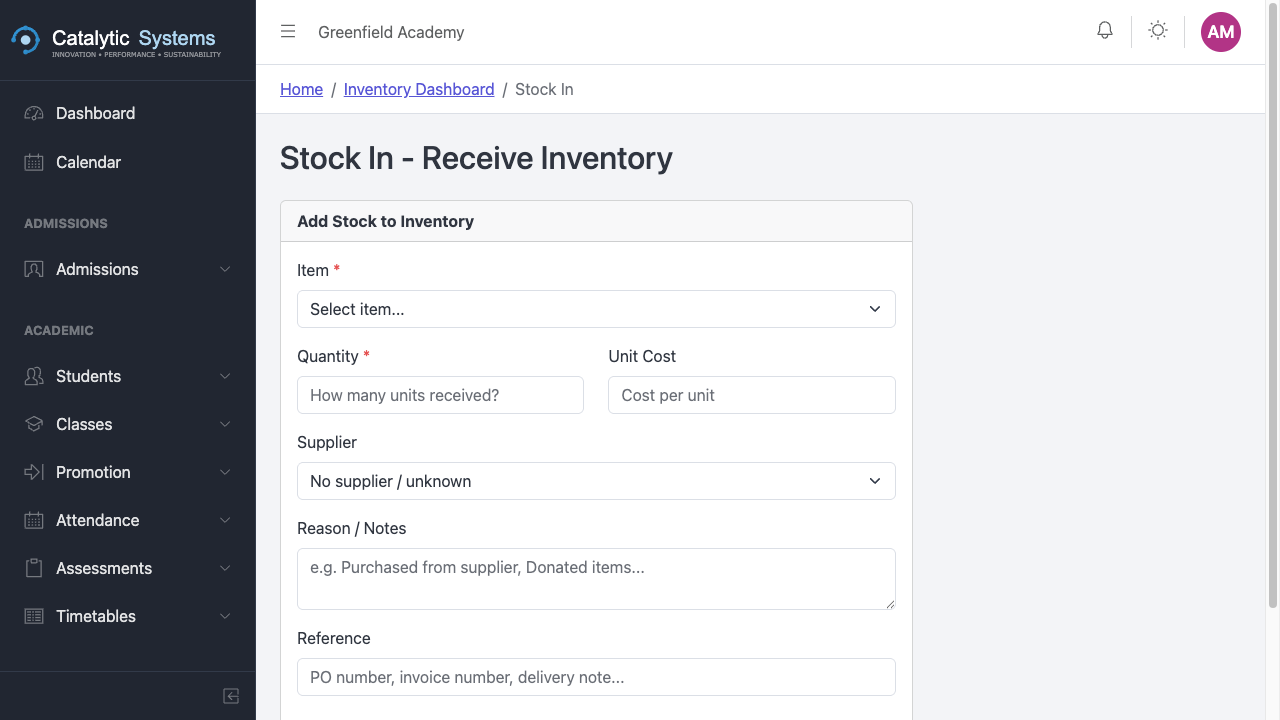
When new stock arrives:
- Go to Administration → Inventory → Stock In.
- Select the item.
- Enter the quantity received and the date.
- Optionally link to a purchase order/reference.
- Click Save.
Recording Stock Out
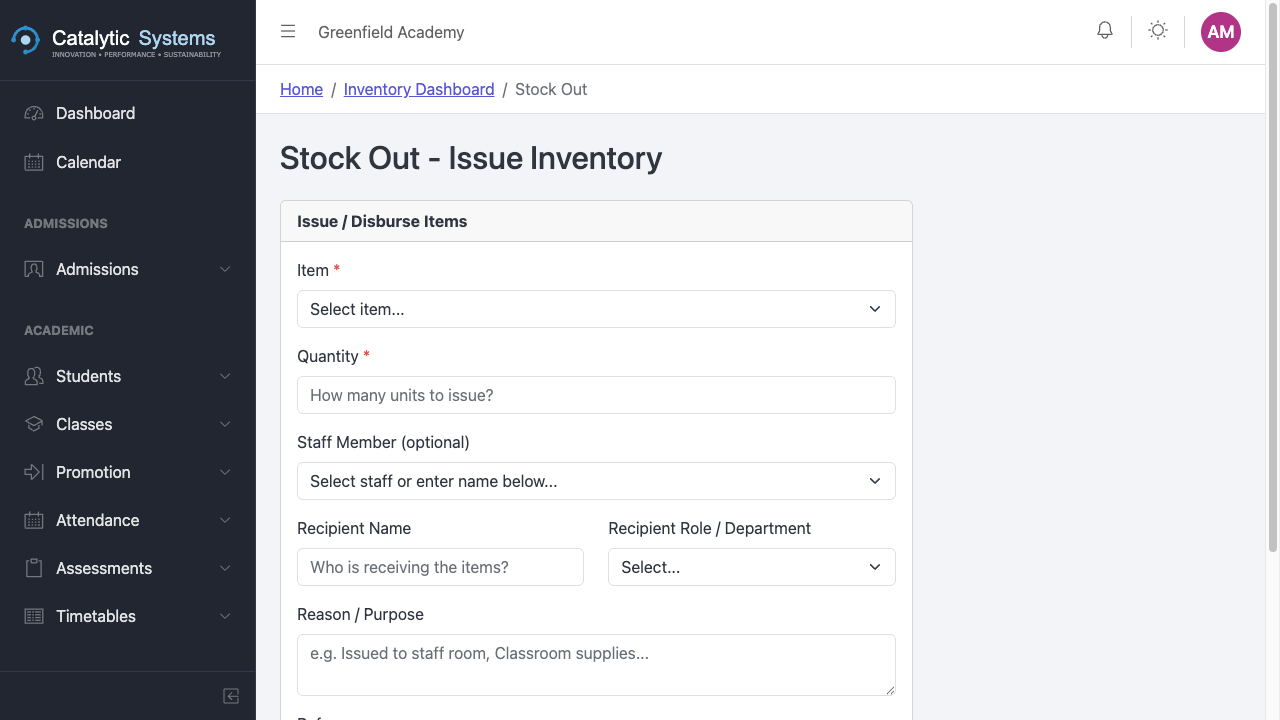
When stock is used or distributed:
- Go to Administration → Inventory → Stock Out.
- Select the item and enter the quantity used.
- Add a note on what it was used for.
- Click Save.
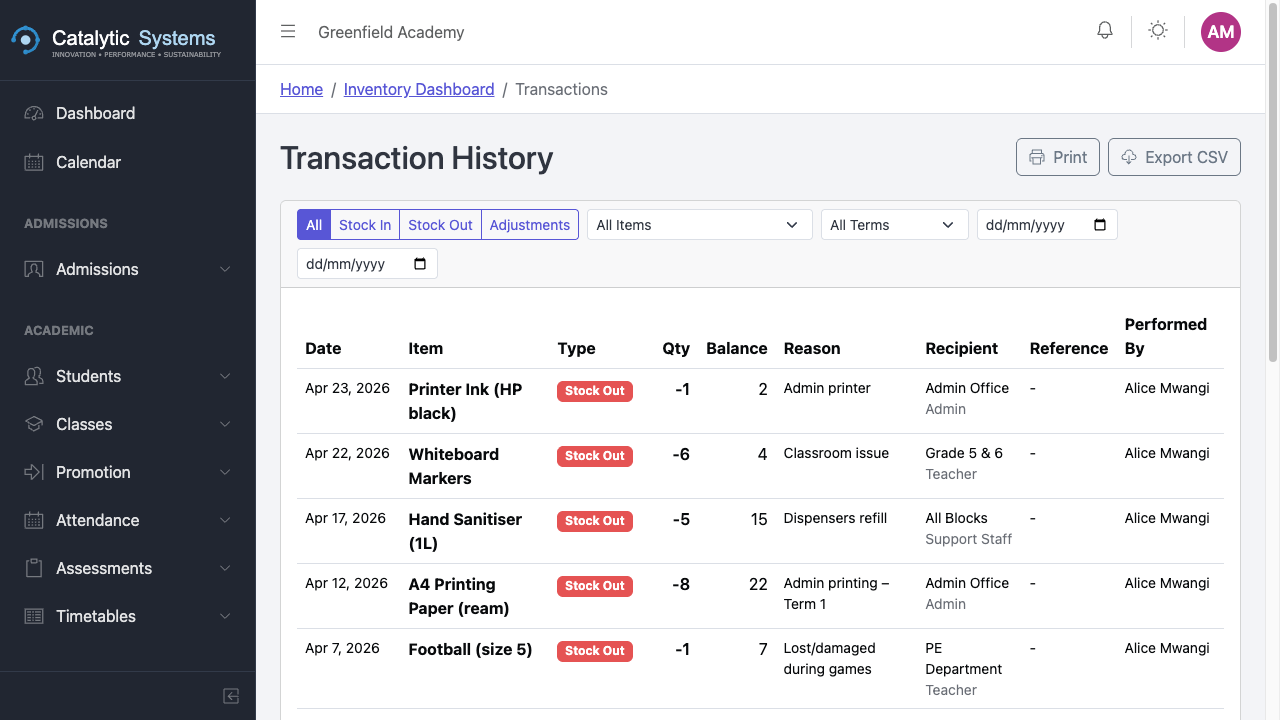
Movement Report
The movement report shows a chronological log of all stock in and stock out for any item. Go to Administration → Inventory → Movement Report and filter by item or date range.
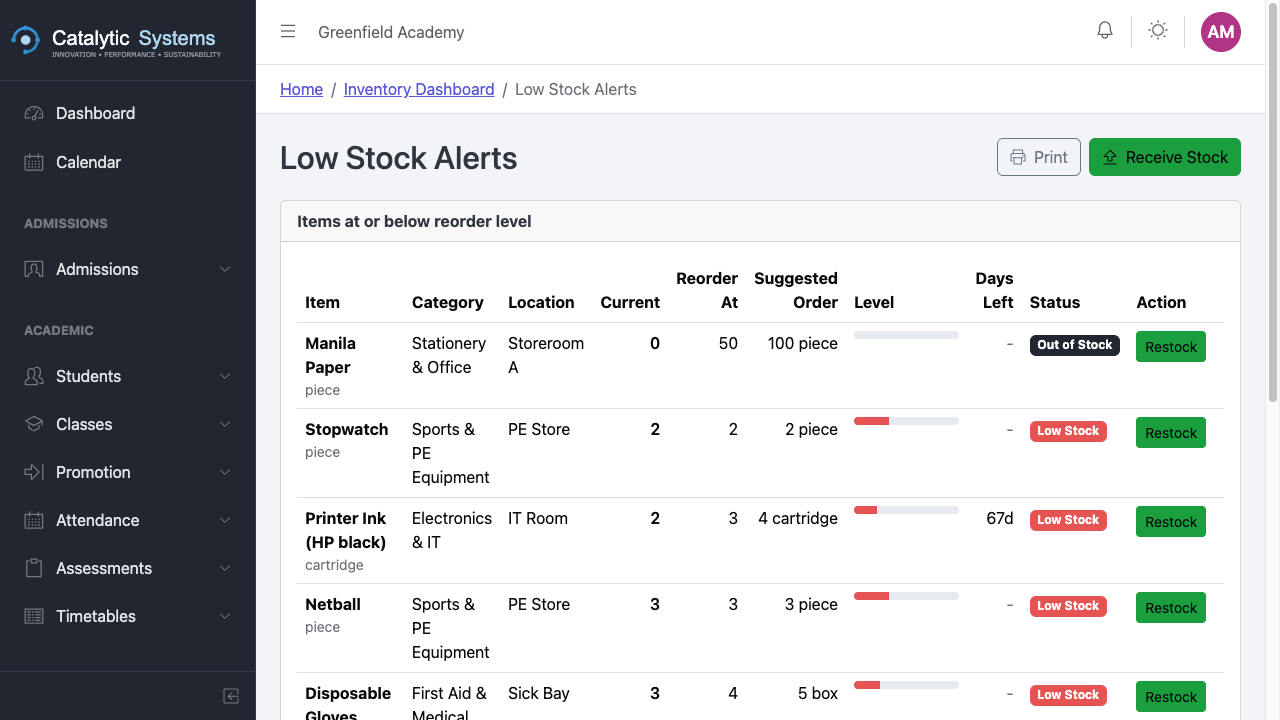
Low Stock Report
The low stock report lists all items at or below their reorder level. Use this for procurement planning.
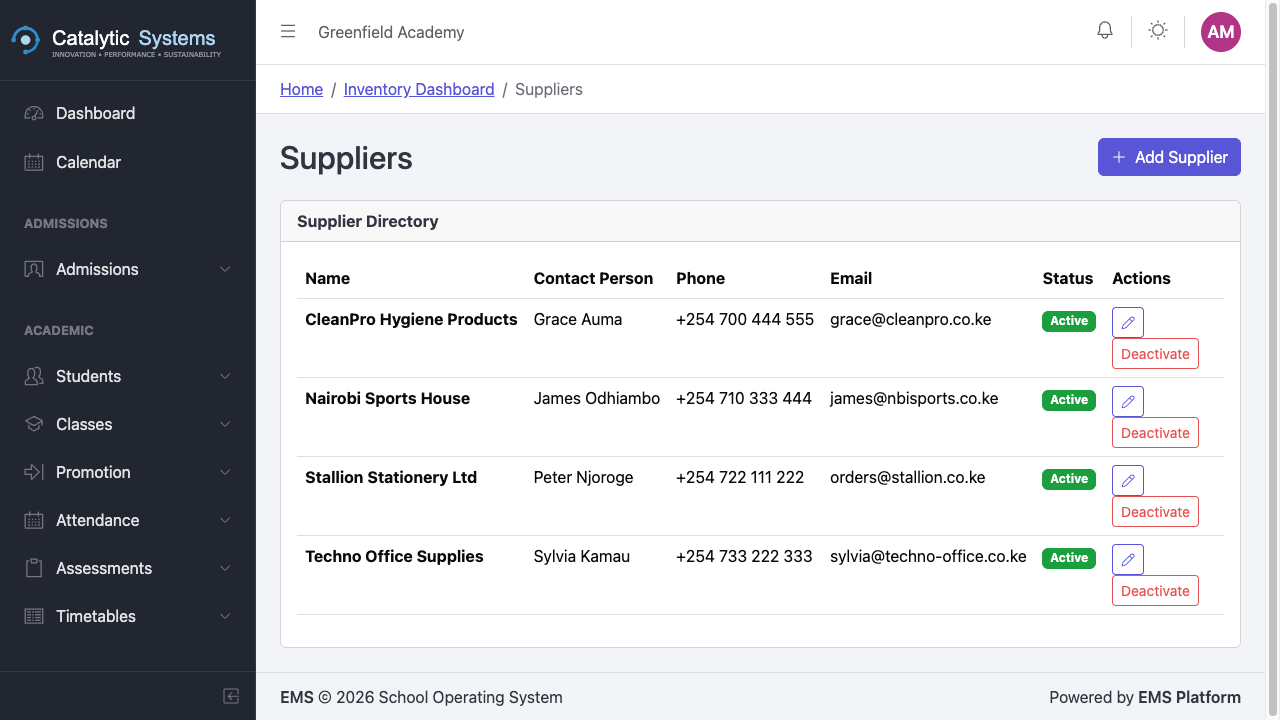
Suppliers
Manage supplier contacts in Administration → Inventory → Suppliers.
Categories
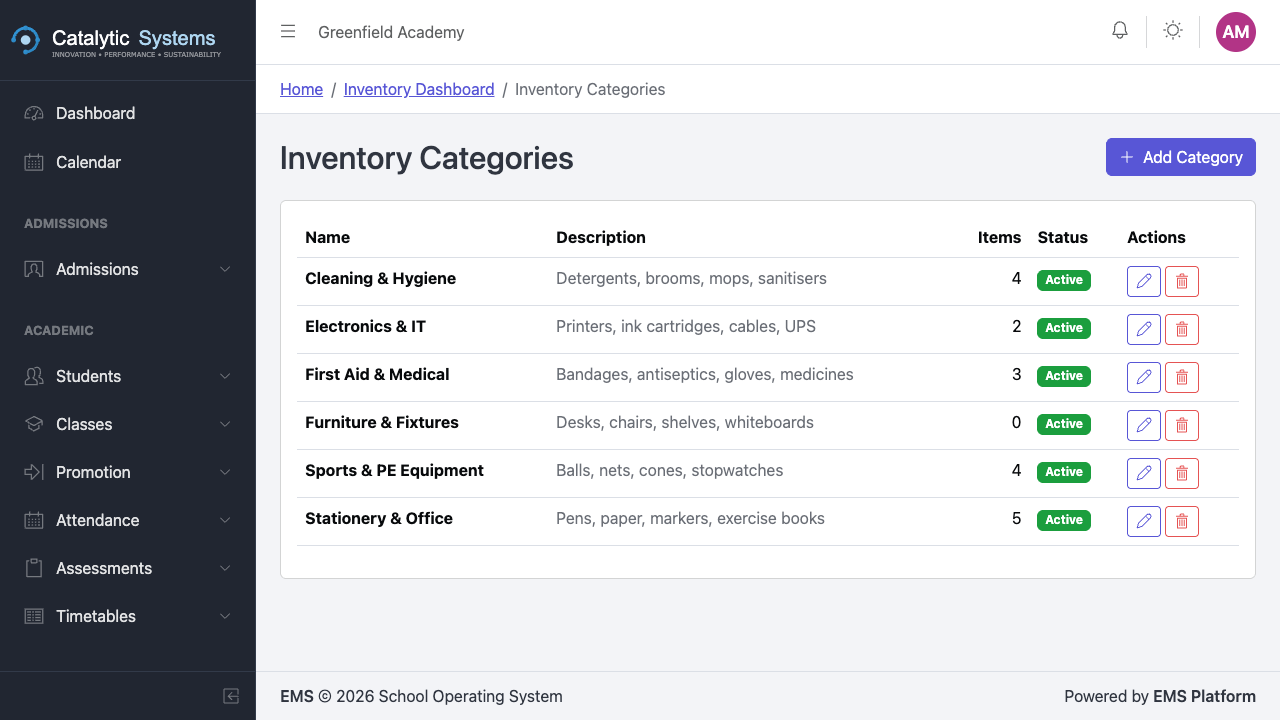
Organise items into categories for easier reporting and filtering.