Timetables
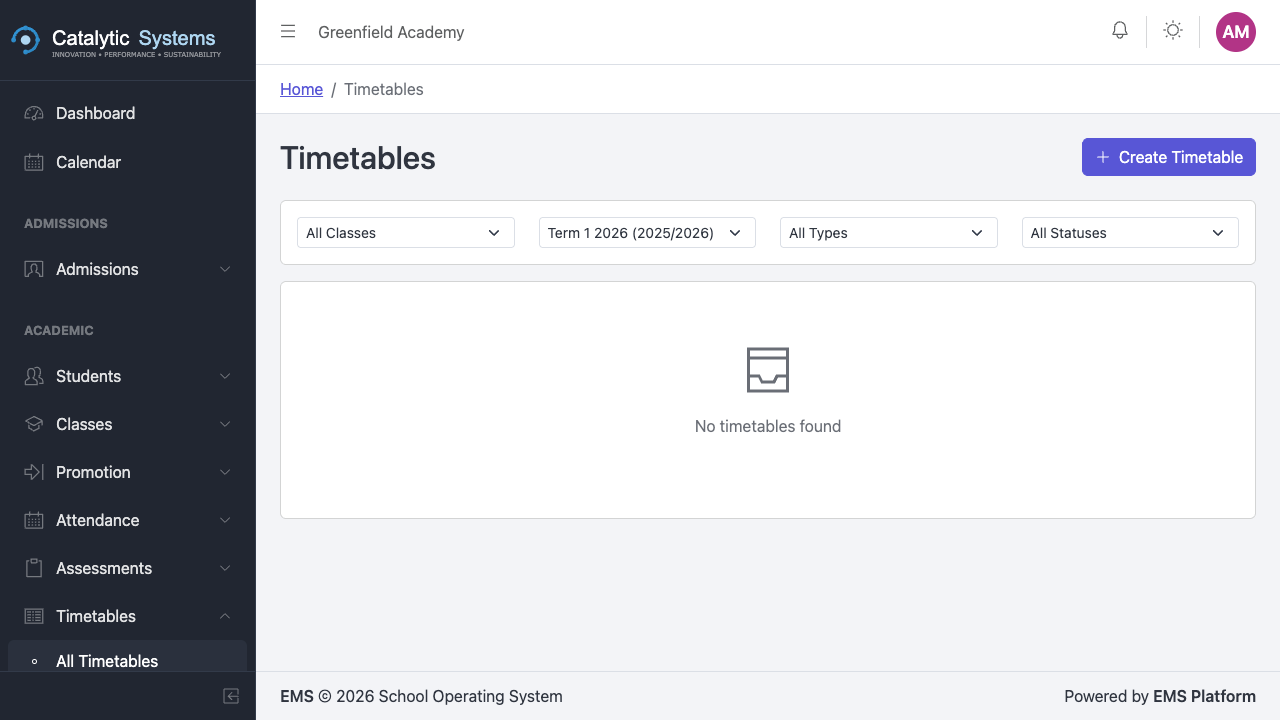
The Timetables module provides a visual drag-and-drop builder for creating and managing class schedules. Once published, teachers and students can view their personal timetables.
Creating a Timetable
- Go to Academic → Timetables.
- Click New Timetable.
- Give the timetable a name and select the term it covers.
- Click Save to open the timetable builder.
Using the Timetable Builder
The builder shows a grid of classes (rows) × periods (columns).


To assign a lesson:
- Click an empty cell in the grid.
- Select the subject, teacher, and room for that period.
- Click Save — the cell is filled with the lesson details.
To move a lesson:
- Drag and drop it to another cell. The system will warn you if there is a teacher or room conflict.
Periods Configuration
Define your school's daily period structure under Settings → Timetable Periods:
- Period name (Period 1, Break, Lunch, etc.)
- Start and end time
- Whether it is a teaching period or a break
Conflict Detection
The timetable builder automatically detects:
- Teacher conflicts — same teacher assigned to two classes at the same time
- Room conflicts — same room assigned to two classes at the same time
Conflicts are highlighted in red. Resolve them before publishing.
Publishing a Timetable
Once complete, click Publish to make the timetable visible to teachers. Published timetables appear on each teacher's personal timetable view.
Teacher Timetable View
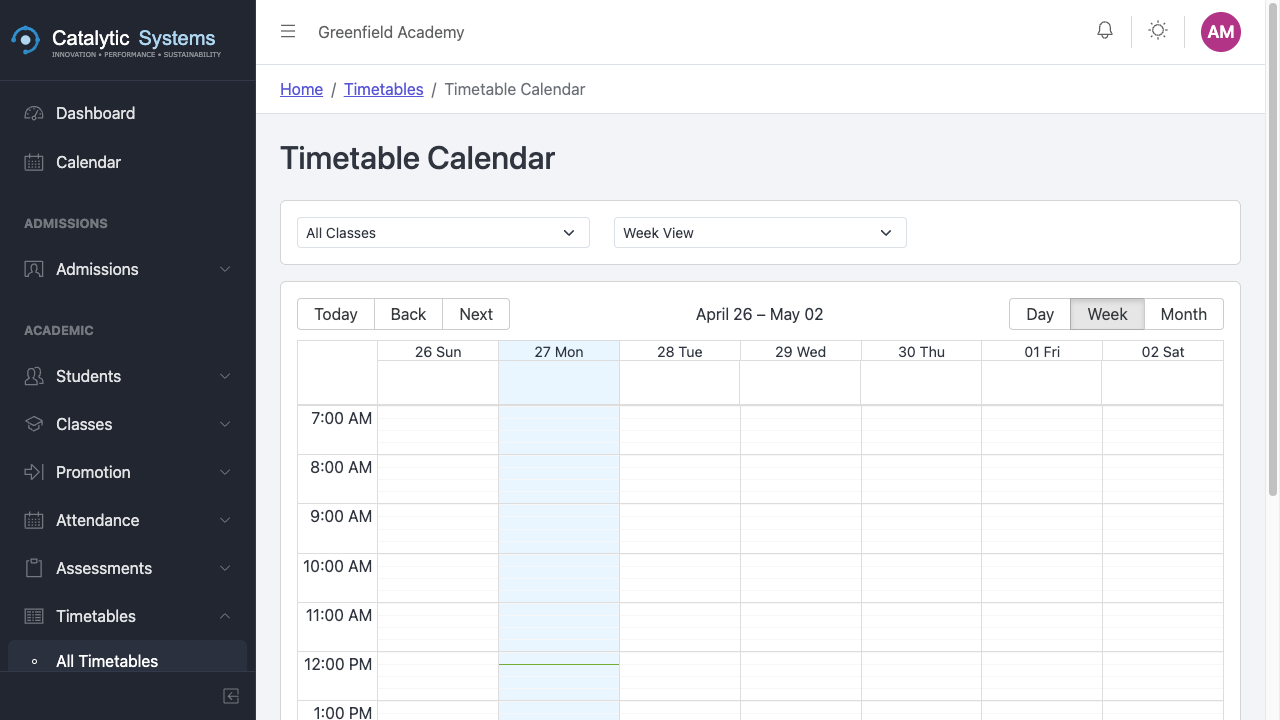
Teachers can view their personal timetable from Academic → Timetables → My Timetable — showing only their lessons, rooms, and classes.
School Overview
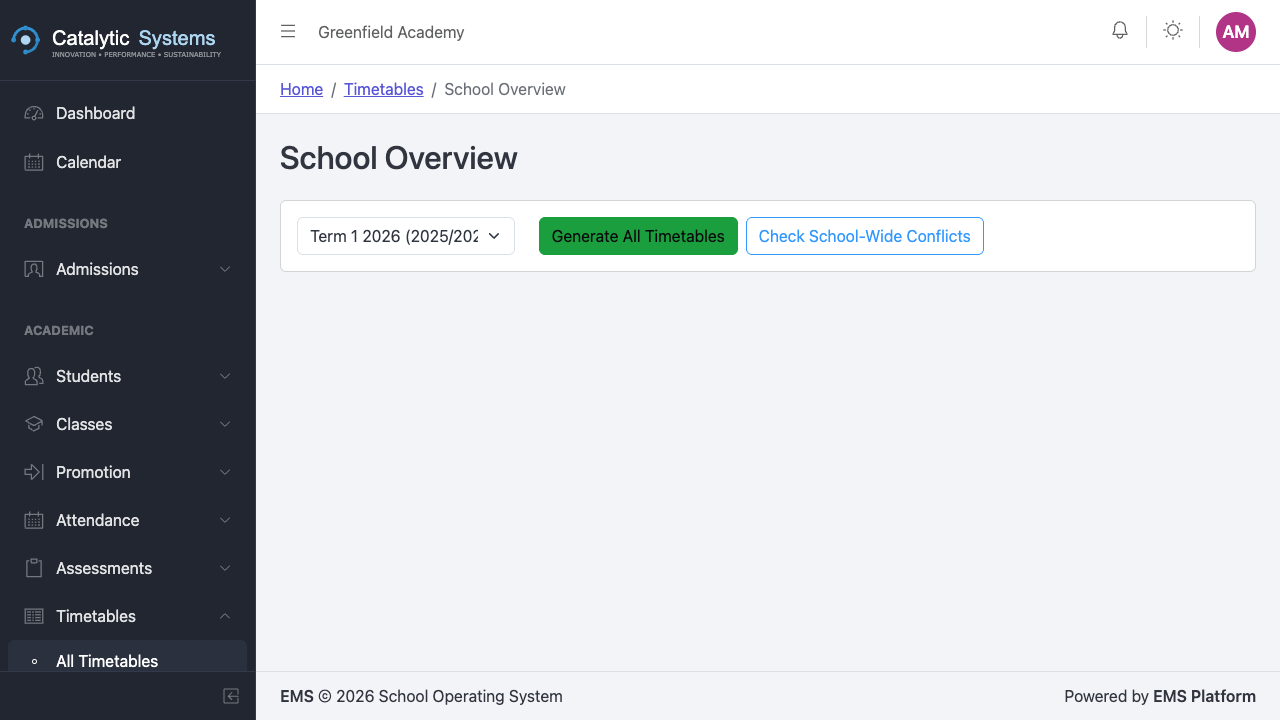
The School Overview shows all classes and their schedules side by side — useful for spotting gaps or overloaded days.
Compliance
The compliance report shows which classes have unfilled periods, helping ensure every class has a full teaching schedule before the term starts.