Attendance
The Attendance module lets teachers mark daily or period-by-period attendance for their classes, and gives school administrators a full overview of attendance across the school.
Marking Attendance
As a Teacher
- Go to Academic → Attendance.
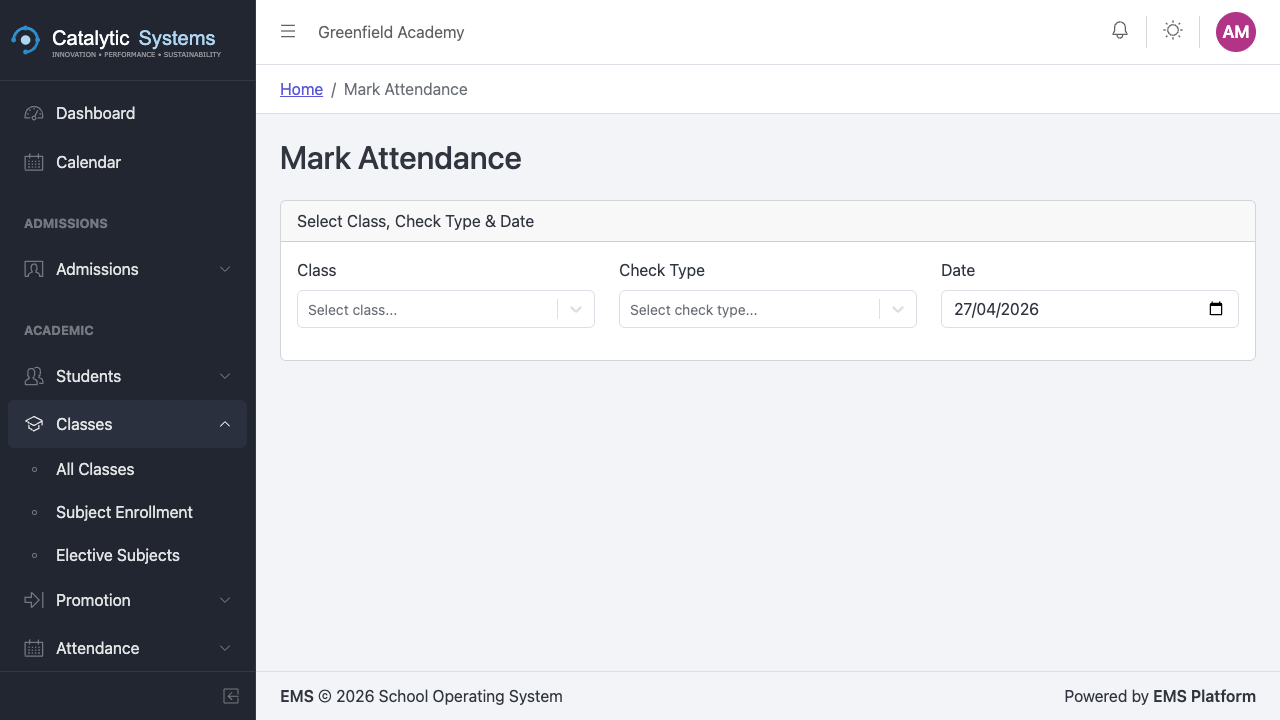
- Your assigned classes are listed. Click the class you want to mark.
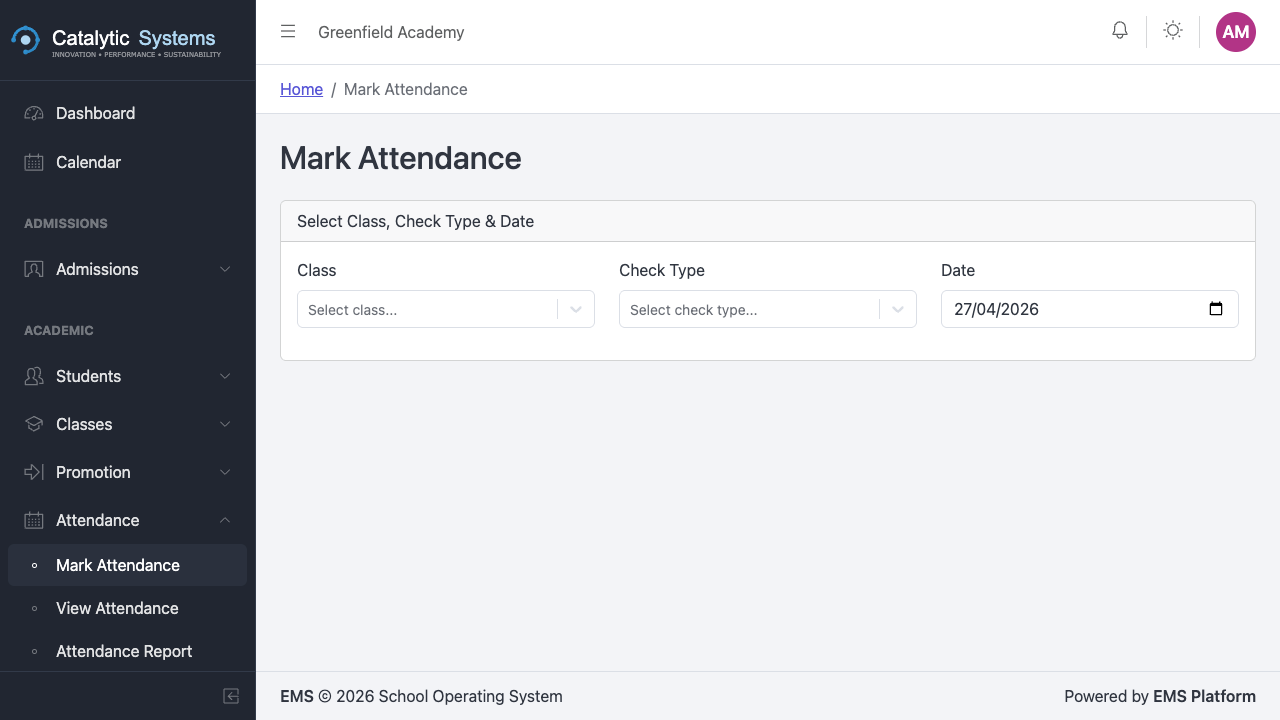
- Select the date (defaults to today).
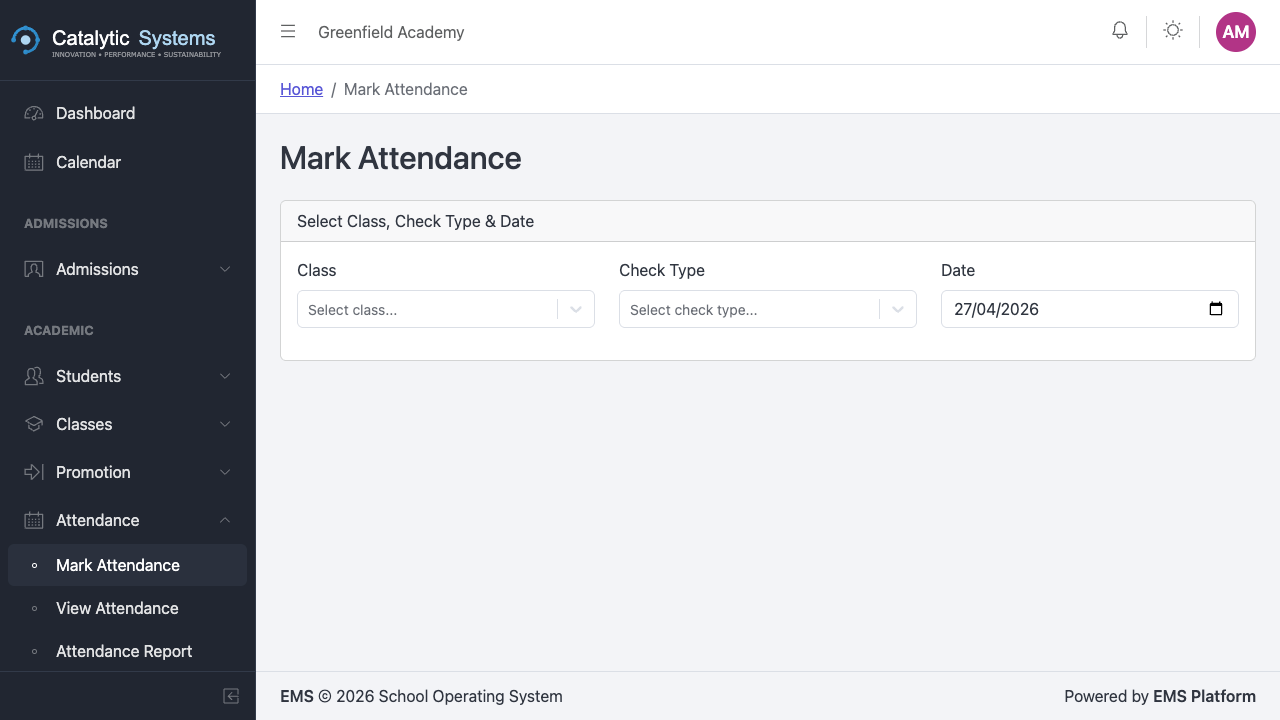
- The full student list loads automatically.
-
For each student, click their status:
- P — Present
- A — Absent
- L — Late
- E — Excused
-
Optionally click the note icon next to a student to add a reason for absence.
-
Click Save Attendance.

Use the Mark All Present button at the top to mark the entire class present, then adjust individual students who are absent. This is faster for classes with high attendance.

Once attendance is saved for a date, it can be edited by the teacher until the end of the school day. After that, only a School Admin can make changes.
Mobile Attendance
Teachers can also mark attendance from their phone using the mobile-optimised attendance view. The interface is the same but optimised for touch.
Attendance Reports
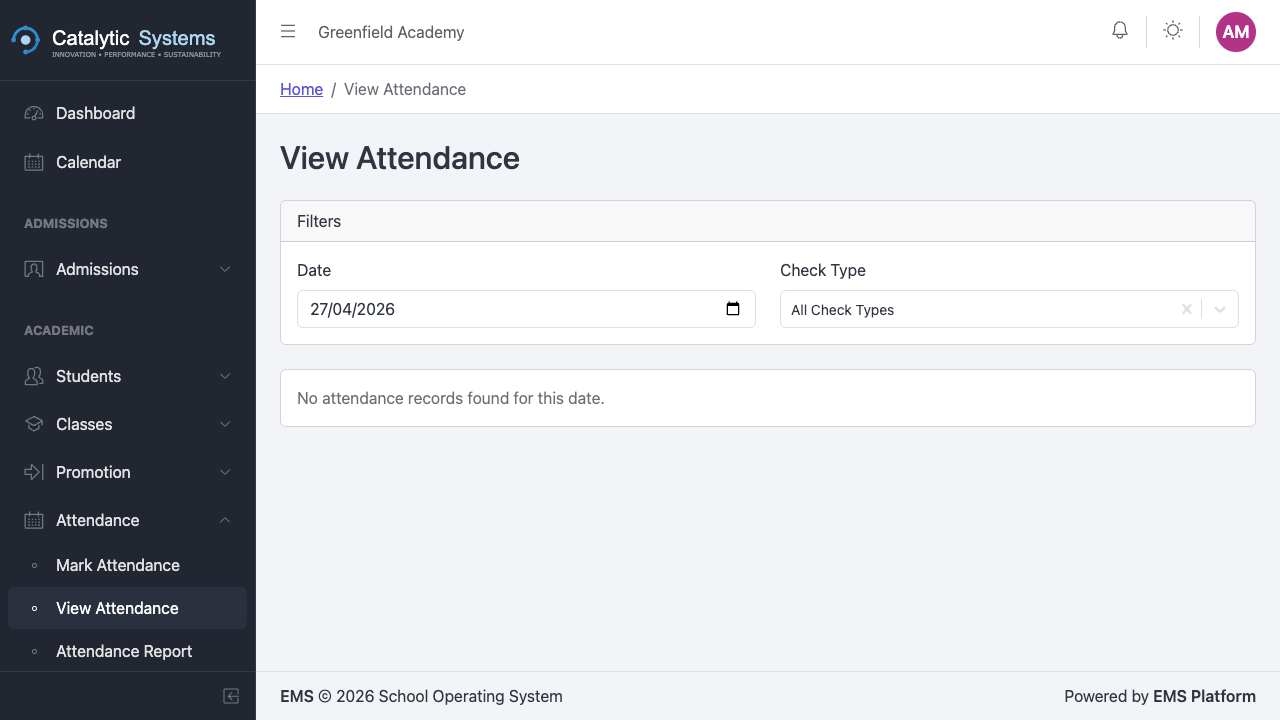
School Admins can view attendance reports across the school:
- Go to Academic → Attendance → Reports.
- Filter by class, date range, or student.
- Export to CSV or print the report.
Attendance Compliance
The compliance view shows classes that have not had attendance marked for the current day. School admins use this to chase up teachers who have missed marking.
Go to Academic → Attendance → Compliance to see the compliance dashboard.
Check Types
Some schools mark attendance multiple times per day (e.g. morning and afternoon). Go to Settings → Attendance Check Types to configure these.